Powtton: The Visual Communication Platform + My animation video


 Hello guys, Today I’m going to talk about Powtoon.Powtoon is one of the internet tools that has been used widely recently. With Powtoon, you can teach or watch really fun lessons. So what is Powtoon? How to use Powtoon? Here's how to use Powtoon.


What is Powtoon?


Powtoon is a tool that allows you to create an animation using speech bubbles, shapes, images, characters, and many other materials you can think of.

Of course, creating these animations is entirely up to your creativity. With Powtoon, you can create beautiful, interesting animations with good planning and using your creativity. Thus, your lessons will be more fun and you can attract more attention of your students and make them more focused.

How to Use Powtoon?


To be honest, I had no idea how to do it at first. Although its use seems a bit complicated at first sight, I found it very simple with a little effort and you will understand when you try it. :)


You can share your animations on YouTube and other video sharing sites. (There is even an Instagram format) You can use your animations in your lessons through these sites.


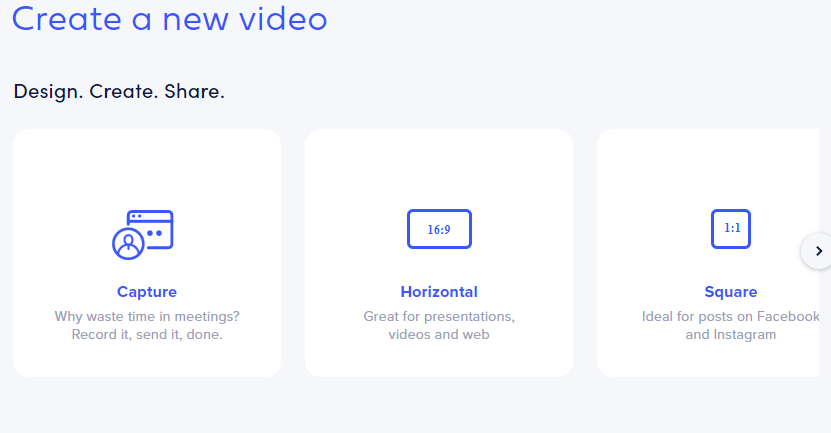
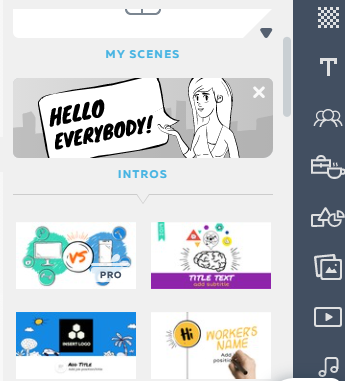
Powtoon starts off by asking what kind of video you want to make. The user chooses one of the options to create a video, animation, or PowerPoint presentation. After the selection, Powtoon, the video making site, guides you to create your own content, starting with the introduction. Click on the segment and you will see a bunch of template alternatives. Once you've chosen your next scene, you can add a text box.


How to use POWTOON?


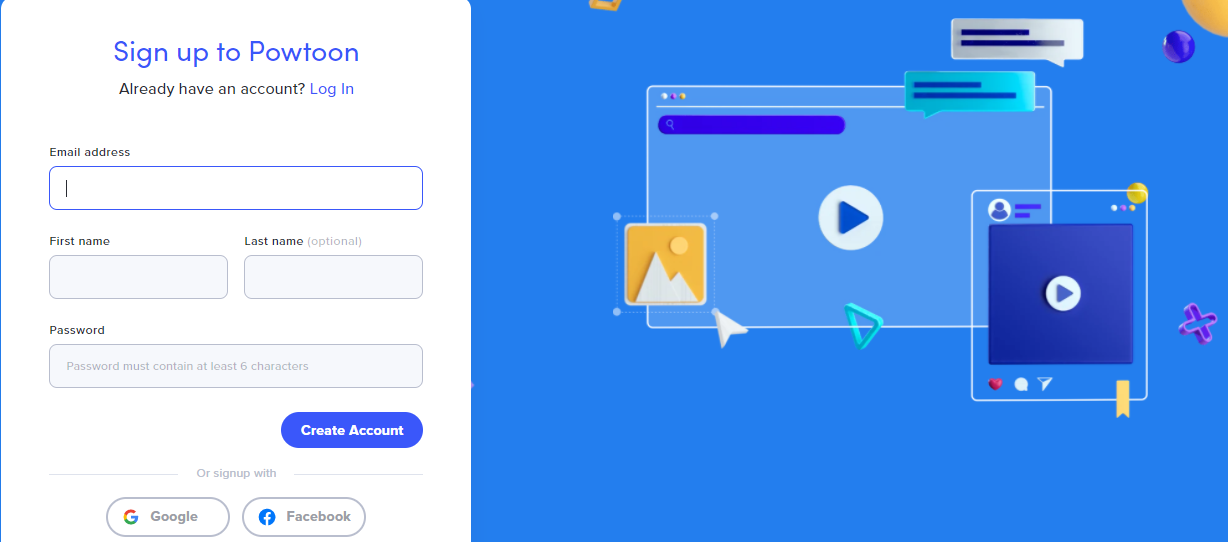
first of all type powtoon.com then sign-up for free and fill up all the fields


or sign-up with one of the social media accounts options such as Google and Facebook.


It asks you “what video would you like to create”. As you can see below you have lots of options to create.


I chose the “Education” option but I can customize my preferences whenever I want with the customize option.


You can create Powtoon from ready-made presentations or start from scratch. 


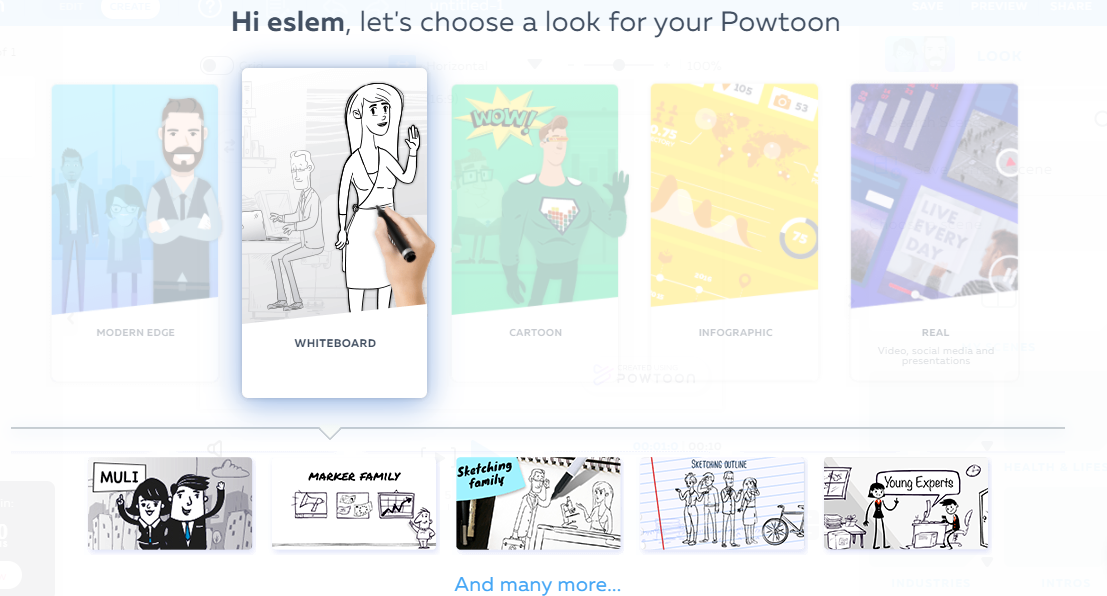
At first, you can choose a look for your created animation, for example, I chose a whiteboard but there are also modern edge, cartoon, infographic, and real options. you can also change later your look.


Then you can select edit for a ready-made presentation.


or you can select a blank project or template.


My library panel:


You can add different characters to your Powtoon.


you can add background to the slide.


you can even add music to your video and there are lots of options. If you didn’t like any of them, you can add your music playlist.
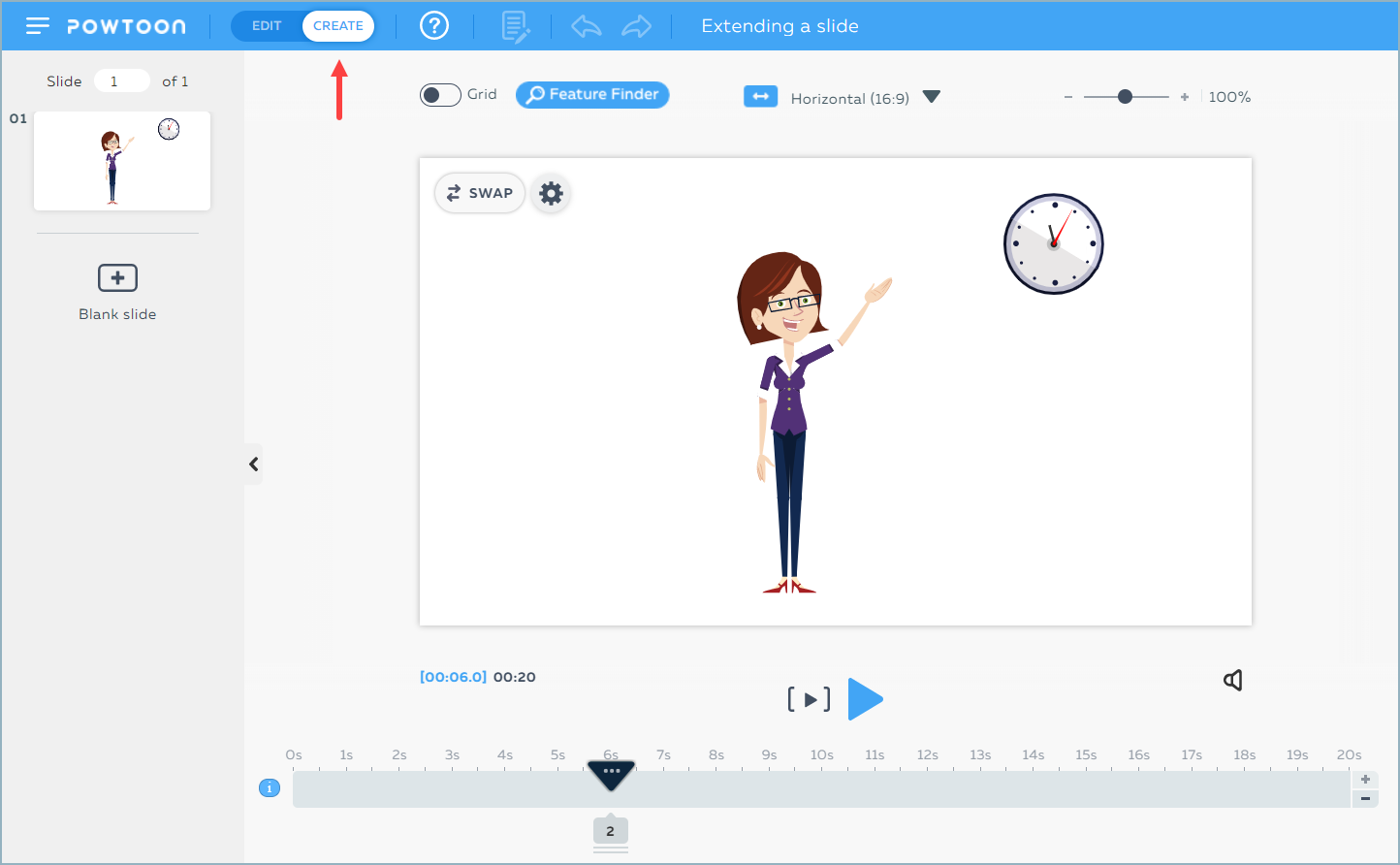

Add a new blank page

Save button (by clicking on the youtube or Facebook account option, you can log in and 

Share your animations from these platforms.)

The section to watch our animation

Adding pictures to the background section

add text

Adding characters

Adding objects section

The option we will add shapes

The option we will add a picture

Adding a video

Option to add sound


What Are The Alternative Applications Like Powtoon?


If you are looking for an alternative application to create animation, I recommend you;


  • Animaker

  • Plotagon

  • Moovly

  • Renderforest

Benefits of Using Video and Animation in Foreign Language Education

It can be used for demonstration and modeling by bringing facts and events that cannot be shown or applied in the classroom to the classroom environment.

It is suitable for displaying subjects that require practice.

It makes learning easier by addressing more than one sensory organ with its movement, color, and sound dimensions.

Increases the memorability of the information learned in the target foreign language.

Animation, cartoon, dialogue, animation, etc. It provides rich, interesting presentation opportunities in different formats.

MY PAWTOON ANIMATION VIDEO:

https://www.powtoon.com/c/fAbtm6rbxQa/1/m


I hope my post today has been useful to you. Actually, as a  prospective English teacher, learning the existence and use of this platform really helped me. I can’t wait to use this fundamental platform in my lessons!

take care of yourself and keep healthy! ^-^


Comments

Popular posts from this blog

Padlet+My own Padlet

 PADLET Hello guys! Hope you are all fine. Today I wanna explain about Padlet, which I find really useful for you, which has both an application and a website. WHAT IS PADLET? Let’s think of a clipboard. Imagine being able to add text, images, videos to the clipboard as you wish, and imagine that you organize them whenever you want, plus all of them interactively with your students. Padlet is the effective tool you are looking for! In the Padlet, you can add images, videos, and articles you want or imagine. You can customize it as you wish and put your plan and program on the board. You can make your lesson notes, videos, images, and many virtual materials you want to keep in the Padlet. You can also work in a common area with your students, private tutors, or your teachers. You can share the board you have created and create a working environment with the people you want. Especially in this pandemic period, thanks to my lecturers, I also benefited from the Padlet and experienced i...

Kahoot!- Make Distance Learning Fun With Kahoot!

  Kahoot!- Make Distance Learning Fun With Kahoot! Hey guys! Today I'm going to explain to you the Kahoot app. What is Kahoot? Kahoot is a question-answer platform designed for teachers where you can give private lessons to your students, prepare quizzes and surveys for your students in a simple way. An application that makes lessons more enjoyable for students. You can start creating your quizzes by logging into the getkahoot.com site and signing up for free. After completing your quizzes, your students just need to open any internet browser on their device, connect to Kahoot.it and enter the quiz's code and names. Let's see how to create a quiz using Kahoot. How To Use Kahoot? Step 1: First you login to getkahoot.com Step 2: You choose your role on the screen you see. Step 3: After filling in the required blanks, you can press the create account button and log into your account. Step 4: On the screen you see, Kahoot offers you two options. You can assign homework or qui...